F-OFF Instructions
CONCEPT:
- The app is designed to do two functions.
1. Log Folders Tab – for getting all the log files from multiple folders and gathering them in one location so its an easier process after sailing.
2. Correction Table Tab – for keeping track of changes to correction tables, which is particularly helpful when using Sailing Performance Calibrator App for post race calibration. - The whole aim of the app is to make the workflow easier and faster after sailing or during a training day.
LOG FILE TAB:
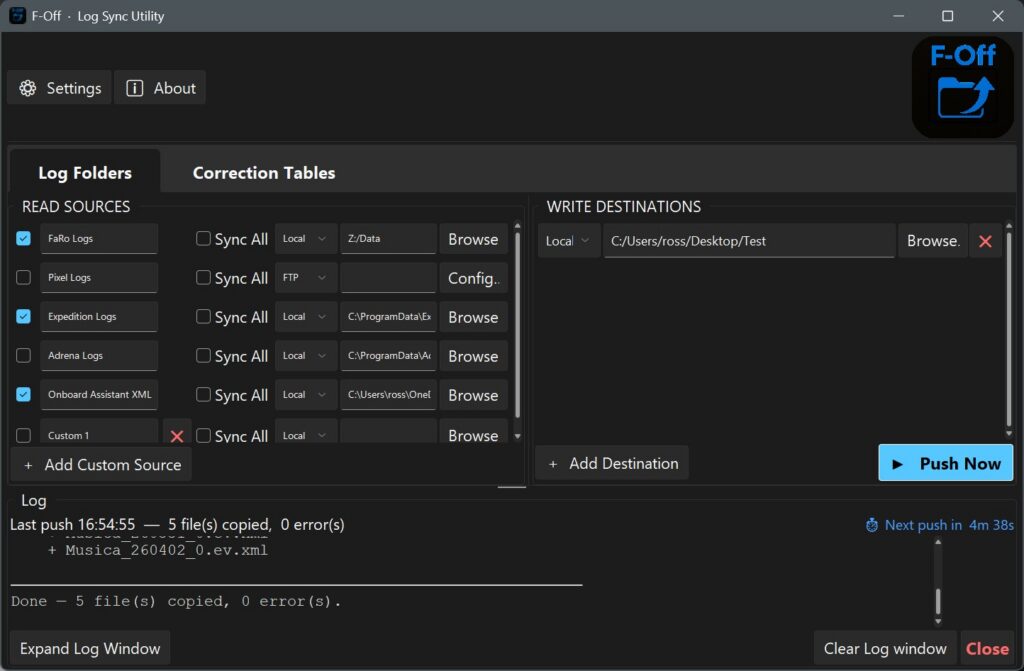
- The Log File Tab is designed to copy the latest version of files from the specified folders to a specified location (or many locations)
- It compares the source folder contents to the last time it ran, so it copies ONLY the files that have changed since.
- You can tick the “Sync all” box for a source and it will copy everything in that folder. (useful for taking a backup of the entire Expedition Data folder each day)
- It will not delete files off the destination if they are deleted on the source.
- Each day it copies into a new folder on the destination in the nominated location with a folder name of “yyyymmdd-SourceName” For example “20250125-Expedition Logs”
- Sources and destinations can be local folders, mapped drives (treated as a local folder), FTP or SFTP.
- LEAVE THE APP Running for auto push to destination to run. If the app is closed, auto will not work.
SOURCE (LEFT SIDE):
- There are defaults setup for FaRo Logs, Pixel Logs, Expedition Logs, Adrena Logs, Onboard Assistant XML. These show the default locations of these programs, but may need updating to your installed locations.
- There is a Custom option which you can rename, for example you might want to get correction tables from FaRo
- You can add multiple Custom Entries
DESTINATION (RIGHT SIDE):
- Here you can add multiple detinations, just click add destination button and fill in where you want it to go, Local, FTP or SFTP.
SETTINGS
- Here you can save your profile (setup) as a JSON file. Or load an existing profile. This applies to both tabs (whole program)
- You can clear the sync history, applies only to the Log Folder tab this will mean that the next time you Push to destination it will copy EVERYTHING in the source folder.
- Auto schedule, applies only to the Log Folder tab, and will automatically push to the destination at the set times that you nominate.
CORRECTION TABLE TAB:
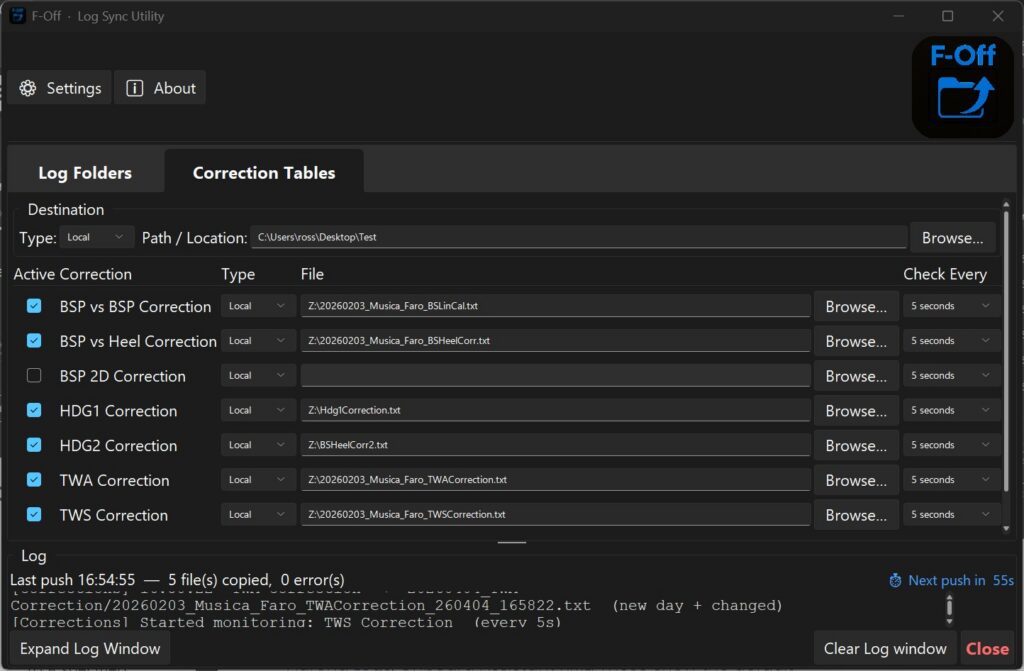
- The Correction Table Tab is designed to keep track of when a correction table is changed.
- It compares the proccessor file to the saved file and when it changes two things happen
- First it copies the new version of the file to the destination and puts it in a folder with the date and the name of the correction eg “20250125-TWAcorrection”
- Second it appends a suffix to the file which is the date and time of the copy (how close that is to the actual time of the change is dependant on the “Check Every” time set. Mostly I leave it at 5 seconds, so the stamp will be within a maximum of 5 seconds of the change) The stamp will look like TWAcorrection_20250125_101525.txt, meaning the change was on the 25/01/2025 at 10:15:25.
- LEAVE THE APP Running for the process to work, if the program is closed it is not running in the background.
DESTINATION (top part):
- This is simply the location you want to send the files to. It can be local or FTP / SFTP. It is the folder in which F-Off will create the various daily folders.
SOURCE (Lower part):
- Ticking the box tells the program to monitor that correction file
- Here you can add the correction table files on the processor that will be monitored.
- This can be a mapped local drive (like is often the case with FaRo),
- A local folder on C:\ (like you would have for a deckman / WTP3 setup)
- An FTP file – remember to point it directly at the file (like Pixel Exocet)
- An SFTP file – again remember to point it directly at the file
- You can then set the frequency you want to check the file. I tend to leave it at 5 seconds, but you can change it if you have trouble with too many processes running on your computer.
SETTINGS
- Here you can save your profile (setup) as a JSON file. Or load an existing profile. This saves for both tabs (whole program)
- Clear sync history, does not apply to this tab.
- Auto schedule does not apply to this tab, this tab will update the file only when the file changes and within the time nominated for that file
Feedback welcome, even if I might not get to updating immediately.